![A.400x400.png]](https://support.angeltrack.com/hs-fs/hubfs/A.400x400.png?height=40&name=A.400x400.png)
Your mandatory data uploads to your state and county trauma registry, and to other downstream consumers of your trip data, are handled by AngelTrack's Outflows system.
Outflow Demands
For each dispatch, the Outflows system calculates and maintains a list of outflow demands.
An outflow demand is a requirement by a state, county, city, region, biller, facility, or registry to receive copies of your dispatch records at designated times. For example, your state trauma registry is an outflow demand, wanting to receive copies of all BLS+ trips as soon as they go to QA. You could also have a biller configured as an outflow demand, who receives copies of all trips as soon as they graduate from QA.
You can see a dispatch's list of outflow demands by opening its run ticket and clicking on the "Outflows" tab.
AngelTrack calculates each dispatch's outflow demands from the criteria recorded in your outflow credentials.
Outflow Credentials
An outflow credential is a set of parameters that tells AngelTrack how, when, and where to send copies of your trip data.
For example, your state trauma registry will issue you a credential for itself, by which you are to upload copies of all BLS+ charts. You will input that credential into AngelTrack as an outflow credential, and configure it to send only BLS+ trips, plus some additional options as needed.
Your outflow credentials are all accessible from the Outflow Status page, under Settings.
You can add as many outflows as you need. You can also deactivate or reactivate old ones.
State/State-Forwarder Outflow Demands
If an outflow credential is marked as a state or state-forwarder, a special rule applies, which does not affect your other outflow credentials:
A dispatch is reportable to only one state or state-forwarder credential.
Therefore you can have multiple state/state-forwarder credentials, perhaps one for each county where you have a station plus a statewide catchall credential. For each dispatch, AngelTrack calculates which one of those credentials best fits the trip, and sends it to them, and not to any of the others, even if they also match.
This rule expresses the assumption that a county registry forwards your data to the state. If your county registry does NOT forward your data to the state (e.g. the Texas RAC registries), then do not mark their outflow credentials as state/state-forwarder, thus forcing AngelTrack to also upload your trips directly to the state.
Regional Trauma Registries / RACs
If you must also report data to a regional trauma registry (such as a RAC) who does not forward the data to the state on you behalf, then configure their outflow credential as a non-state/non-state-forwarder. That way, AngelTrack will send them all relevant data, but will also send everything to your state, so that everyone gets a copy.
Outflow Options and Filters
Each outflow credential has its own set of filters and options which govern the flow of data that AngelTrack sends to it.
These are the basic options for every outflow credential:
-
Webservice type:
- Nemsis3Ws conforming SOAP endpoint accepting NEMSIS XML; or
- SFTP server accepting NFIRS datafiles.
- Webservice URL;
- Data payload type (NEMSIS or NFIRS);
- Data version;
- DEM pre-upload requirement (see DEM section below); and
-
Agency license, agency number, and agency name overrides (discussed below).
Each outflow credential then has the following filters available, to constrain which trips are sent:
-
Jurisdiction state, county, and city;
-
Service levels;
-
Destination facility;
-
Send only if 'billable';
-
Send only if 'emergent';
-
Send only if 'patient contact'; and
-
Send only if transport occurred.
Furthermore, each outflow credential has reupload settings:
-
What point in the Postprocess Workflow to begin uploads; and
-
Whether to send a re-upload if underlying data changes.
For detailed help inputting or editing an outflow credential for your state trauma registry, please visit the State Upload Credential Input Guide.
dAgency.01 / State License Number / dAgency.02 / State Agency Number
The dAgency.01 ("State license number") and dAgency.02 ("State agency number") datafields in the NEMSIS payload specify your license number and your trauma registry number. These are systemwide fields, configurable via the Agency Information page under Settings. Each of your NEMSIS outflow credentials will automatically utilize these systemwide fields when performing an upload.
If you must report data to multiple trauma registries, and if any of them asks for different identifiers in dAgency.01 or dAgency.02, then you can configure any outflow credential to override the systemwide settings, and send custom values instead. For example, you might report data to your county under a county-issued agency ID, which differs from your state-issued agency ID.
You can also override dAgency.03 ("State agency name") for any particular upload credential, if you must send a value that differs from the business name configured in your AngelTrack server's Agency Information page.
Retroactive Changes to Outflow Credentials
Additions, deletions, and modifications to your outflow credentials ARE NOT RETROACTIVE.
That means that any changes will take effect for all validations going forward, but will not apply to older trips unless and until those trips experience a validation point and thus go through the system again.
Remember, a trip's outflow demands are recalculated (using the outflow credentials presently on file) at the end of every validation cycle.
Validation Points
As discussed above, the validator controls all outflows. It blocks or releases each trip for upload to the data consumers on its list of demands.
The validator runs for each trip after any of the following events occur:
-
The attending finishes the report and sends it to QA*;
-
QA passes the trip onward, or fails it back to the crew;
-
The trip finishes QA and moves onward;
-
The trip moves from 'Billing office' to 'Awaiting payment' or to 'Finished'; or
-
Someone makes a change to pertinent data in the PCR, in the associated PMHx record, in the Followup, or in the run ticket.
Whenever any of those events occur, the validator waits for 20 minutes to see if anything else is going to happen, and if no further events occur, validation proceeds.
*The 20-minute delay does not apply when the attending finishes a report and sends it to QA for the first time; instead, AngelTrack immediately sends the chart to whichever state or county outflow credential has jurisdiction, in order to minimize the time-to-upload time for your trauma registry.
Validation Rulesets
AngelTrack has three validation rulesets which apply to your dispatches:
-
NEMSIS (including all applicable schematrons);
-
NFIRS (including all relational edits and all Star rules); and
-
NULL (no rules).
In the Service Levels Configuration page, you control which validation rulesets apply to the various service levels you offer. For example, by default the Wheelchair service level has NULL validation (no rules), but you can enable NEMSIS validation instead if your state requires it.
All Trips Pass Through the Validator
All normal dispatches pass through the validator, even if the trip's service level uses the NULL ruleset. This is because it is the validator that decides jurisdiction, calculates each trip's outflow demands, and queues uploads to any waiting demand.
Thus you might occasionally see a car-service or wheelchair call report itself as "Awaiting validation," even though no validation ruleset applies to it.
Dispatches marked 'Cancelled' or 'Delegated' are always exempt from validation and never participate in the Outflows system. Any dispatch older than 2 years also does not participate in the system.
Cancellations and Dud Calls
In AngelTrack, dispatchers mark a call as "Cancelled" if it never happened. For example, perhaps transportation was booked in advance, but then the patient changed their mind, and so no crew ever rolled. These cases are not reportable to any state, and are excluded from the Outflows system, as noted above.
Whereas when a state trauma registry or fire databases asks you to report your "cancellations", they are asking for you to send reports for the times when you rolled a crew but then pulled them off while they were still enroute. AngelTrack calls this a "Completed, best effort." In NFIRS this is known as incident type 611.
AngelTrack knows how to report these dud calls to your state, county, or other downstream data consumer. Their reportability is controlled by the "Send only if..." filter options on each outflow credential.
For all of this to work, dispatchers must know how to handle these dud calls. The dispatch board offers a best-effort icon  for this purpose; clicking it will properly close the call as a best-effort, rather than as a cancellation. The crew will then be required to perform some minimal book-keeping -- just enough information to satisfy the state registry for a cancelled-enroute situation.
If your state specifically asks you how many such cancellations you've had, use AngelTrack's reports to count up the number of dispatches that are marked "Completed, best effort"; do not count any dispatches that are marked "Cancelled". To learn more, refer to the Call Completion Guide.
Jurisdiction of Interstate Transports
When you transport across state lines, AngelTrack calculates the jurisdiction state like this, using a Texas provider as an example:
- Texas provider picks up in Texas and transports to Arkansas: Texas has jurisdiction
- Texas provider picks up in Arkansas and transports to Texas: Texas has jurisdiction
- Texas provider picks up in Arkansas and transports to Arkansas: Arkansas has jurisdiction
- Texas provider picks up in Arkansas and transports to Louisiana: Arkansas has jurisdiction
The trip will be reportable to the state having jurisdiction. It is their schematron that will apply, and their custom data elements that must be collected.
The jurisdiction state also determines the service level of the crew; AngelTrack will look only at the crew certificates which were issued by the jurisdiction state, or which are marked "national" such as CPR cards.
Schematrons
Trips subject to the NEMSIS ruleset use schematrons, which are electronic rulesets that can perform computerized checks on a NEMSIS XML payload.
AngelTrack calculates each trip's governing jurisdiction, and then selects from all of the following schematrons when validating it:
-
National schematrons, published by NEMSIS TAC;
-
State schematrons, published by most state health departments and disseminated by NEMSIS TAC;
-
County schematrons, published by some counties; and
-
An agency schematron that you can create yourself from AngelTrack's schematron rules library.
Each rule in a schematron can generate one of four different kinds of result: a PASS, a WARNING, an ERROR, or a FATAL.
Any ERROR or FATAL result causes the dispatch to fail validation, and hence cannot be uploaded by the Outflows system until the chart is corrected and re-validated. That includes non-state outflow demands, such as a a billing outflow or a non-forwarding county outflow; a trip must pass validation before it can be uploaded to any party.
(AngelTrack also validates every NEMSIS payload against the NEMSIS .XSDs to ensure conformity to the spec.)
National, State, and County Schematron Updates
The NEMSIS national schematron applies to every EMS run report in every state, and so is already installed on your AngelTrack cloud server, and kept updated with new versions published by NEMSIS TAC.
Your state's schematron is installed in AngelTrack too, imposing additional requirements on your run reports. AngelTrack automatically downloads the latest schematron from your state, every Sunday, from the national repository maintained by NEMSIS TAC. Thus, a new schematron published by your state will take effect in your AngelTrack server on the Sunday following the day your state submits it to the national repository.
If you have any county schematrons for which you must maintain compliance, send them to AngelTrack support.
To check which state and county schematrons are already installed in your AngelTrack cloud server, visit the relevant Outflow Credential, available from the Outflow Status page under Settings.
Conflict of State Schematron Versus County Schematron
When validating a trip whose jurisdiction county publishes a schematron, AngelTrack validates your data against all four relevant schematrons:
-
National schematron
-
State schematron
-
County schematron
-
Agency schematron if you've chosen to use one
All four must pass. If any of them throw an ERROR or FATAL, then validation fails and the trip goes to the Outflow Queue to await corrections.
By doing it this way, AngelTrack ensures that there will be no trouble downstream when the country eventually forwards the data to the state.
If a county schematron imposes a requirement that causes a validation failure in the state or national schematron, or vice versa, then you can mark your country schematron as "eclipsing" the state schematron. It then takes the place of the state's validation rules, and it becomes the county's responsibility to ensure the data is acceptable to the state. If you are in this situation, please contact AngelTrack Support to make the necessary arrangements.
State- and County-Level Custom Data Elements
Some states and counties require PCRs to implement custom datafields (eCustom / eCustomResult) to capture their specific requirements not present in the national NEMSIS spec. AngelTrack has a flexible custom PCR field system that is used for this purpose. To learn more about it, please visit the Custom PCR Fields for EMS Guide and the Custom EMS Picklists Guide.
AngelTrack will automatically import your state's custom-fields and custom-picklist-values lists, every Sunday. To learn more, please visit the StateDataSet Importer Guide.
There is no standard registry of county-level custom fields, so AngelTrack does not auto-import county custom fields. You must obtain your county's StateDataSet document and import it into AngelTrack yourself, using the aforementioned guides, or send it to AngelTrack Support.
The Outflow system calculates each trip's jurisdiction, and includes all custom fields and custom picklist values that apply to the jurisdiction state and county.
AngelTrack Built-In Custom Data Elements
AngelTrack's NEMSIS payloads emitted by the Outflows System include custom datafields that are specific to AngelTrack, containing useful extra information that doesn't fit in the NEMSIS spec -- things like the price quote, caller name, time zone, billing notes, and so forth.
If you are importing AngelTrack's NEMSIS exports into a billing platform, you can benefit from this extra data. To learn more about this, refer to the Custom Fields in NEMSIS Data Guide.
Validation Errors / Using the Outflow Queue
If a dispatch fails validation, it appears in the Outflow Queue, which is accessible from a link on the Outflows Status page under Settings. Likewise, if an upload attempt is rejected owing to a data validation error (NEMSIS error codes 6, -12, -13, -14, -15, or -16), AngelTrack will place it into the Outflow Queue as a validation failure.
From that queue, you can open the PCR or the Dispatch Edit page to make the necessary corrections.
Someone at headquarters or in your billing office must be responsible for handling failed validations; AngelTrack cannot correct them on its own, though as noted above, AngelTrack will periodically retry any failed validations, to see if they now pass the possibly newer schematrons in force. If a failing validation passes during an automatic or manual re-validation, it leaves the Outflow Queue and resumes normal outflows.
Why dispatches sometimes end up in the Outflow Queue
As shown above, validation occurs when the crew attempts to send their report to QA, and occurs again when QA attempts to send the report onward to the Billing office. Once at the Billing office, the dispatch has been validated twice, and is ready for upload to the state trauma registry. So how can a dispatch end up in the "failed to validate" list?
The answer is: Because of changes made to the run ticket and/or PCR data by the biller. Billers have authority to make such changes as are necessary to make the report suitable for an insurance claim. Standard protocol is they should send the report back to the crew or QA with a list of requested changes but sometimes they make a judgement call, and make some edits (very often after talking with the crew). When they do this, there is some small chance that the change will result in a validation error later, when AngelTrack performs the 3rd validation immediately before upload to the state.
Billers also have authority to jump a dispatch over QA even though it still fails data validation. It will then end up in the Outflow Queue as a failed validation, waiting to be fixed so that it can be uploaded.
Validation error messages are cryptic and terrible
When a dispatch fails validation, the validation error messages are stored for display in the Outflow Queue, and on the "Outflows" tab of the run ticket. By reviewing the error messages, you can identify the problem and correct it.
Unfortunately, the validation error messages are usually cryptic, sometimes totally obtuse. This is because the error messages are software-generated, using computer validation scripts provided by third parties (state health departments).
Here is an example of a typical validation error:
Based on Incident/Patient Disposition, the following should be recorded: Transport Mode from Scene, Final Patient Acuity
There are usually enough hints in there to figure out the problem. Do you see it? There is some data missing from the Followup.
AngelTrack has a feature called the Contextualizer which will help you figure out how to fix each data validation error. It analyzes the error message, attempting to identify all datafields that are contributing. Whenever it identifies one, it adds a link you can click, which will take you straight to the PCR field in question, which it will highlight, like this:
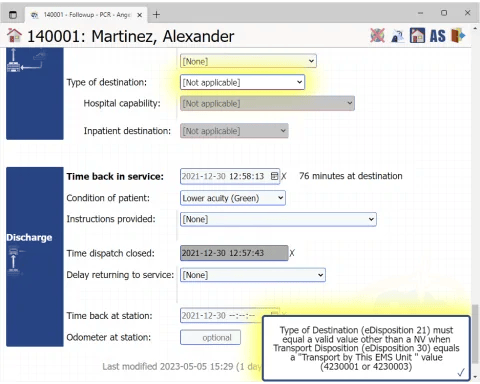
To learn more about how to fix validation errors with the help of the Contextualizer, take a look at the Contextualizer Guide.
If you encounter a validation error message that you just can't figure out, even after trying all the field links provided by the Contextualizer, then refer to the AngelTrack NEMSIS Crosswalk. It shows how each NEMSIS datafield maps to AngelTrack fields.
Using the NEMSIS XML Workbench
If you wish to experiment with the NEMSIS validation process, or review failed validations, you can do so using the NEMSIS XML Workbench, available under Billing Home. It permits you to replay the steps of the validation process, and view the results, for any dispatch you choose.
The workbench will load any dispatch ID you specify, including dispatches that were cancelled or that did not include a patient transport. Such dispatches may fail to validate on account of missing data.
The workbench can also load your NEMSIS demographic submission, which is the data package uploaded to your state's trauma registry in order to describe your agency's capabilities. The workbench can load the demographic data, validate it against the XSDs and/or the schematrons, and display the results.
Clearing out the Outflow Queue
Any time anyone modifies PCR data, the underlying dispatch will be automatically re-validated. At that time, if the validation is successful, it will automatically move out of the Outflow Queue and onward to be uploaded to all of its demands. No user intervention is required.
You can also force an immediate re-validation by clicking the "Revalidate" button in the rightmost column of the Outflow Queue, or on the "Outflows" tab of the run ticket. AngelTrack will revalidate the call, which can take a minute or so.
Automatic Retry of Failed Uploads
Whenever an outflow upload fails, AngelTrack analyzes the failure and takes appropriate next steps.
If the failure was a rejection by the destination, such as a schematron error, AngelTrack queues up the trip for re-validation, since the destination's schematron might've changed since the last validation.
If the failure was a wrong-username or wrong-password error, AngelTrack pauses the outflow credential for a while, using a technique called "linear backoff". Later it will automatically unpause and retry the failed outflow.
If the failure was some other error, such as a connection failure or service-not-available, AngelTrack pauses the outflow credential for a shorter period of time, then automatically unpause and retry.
AngelTrack also automatically retries failed validations, from time to time, in case the relevant schematrons have changed and the trips might now pass validation.
Demographic Uploads aka "DEM"
The NEMSIS specification requires the upload of "demographic" data, which is a package of data about an EMS agency and its capabilities. The content of the demographic package contains approximately the following:
- Nearly everything in every tab (except "Online Resources") of the Business Information page under Settings;
- The Procedure List, including each procedure's patch requirement and SNOMED code;
- The Medication List, including each medication's patch requirement and RxNAV code;
- Your Medical Protocol, to indicate which protocol sections are active (authorized) for your crews.
- Your Stations List.
- Your Vehicles List.
- Your Devices List.
- Your Employees List, including all details stored for each employee:
- Name
- Mailing address
- Race, gender, date of birth, citizenship
- Certificates
- Experience
- Hiring information
- Immunizations
- Education level
- Languages spoken
- Your annual call volume numbers going back two years.
- Any row from your Facilities List where the "DEM reportability" field is either:
- Set to "Always"; or
- Set to "Auto" and the facility has at least one completed trip (inbound or outbound) in the past year.
Automatic DEM (demographic) uploads
Every outflow credential has an option for whether it should send a DEM payload in addition to the normal data stream. When this option is enabled, then per the NEMSIS specification, the demographic package will be sent under the following circumstances:
- Prior to uploading the first pending trip payload;
- Again within 24 hours after any change to the underlying demographic settings; and
- At least once every year.
All of that is handled automatically. In your list of outflow credentials, you can see the date of each credential's last demographic upload, if any.
Because a DEM payload is due at certain times, including before any NEMSIS payloads are sent, a failing DEM upload will obstruct an outflow credential from sending anything else, until the issue is resolved. DEM upload failures are usually caused by an endpoint not allowing such uploads, in which case all you need to do is disable the DEM feature on the respective outflow credential.
Some states do not wish to receive demographic uploads
Some states do not want or allow an automatic upload of your demographic data. Instead, they require you to submit the data in some other way, such as sending in paper forms or filling out online forms.
AngelTrack already knows which states behave this way, and so will not attempt a demographic upload to them. In AngelTrack's built-in outflow credentials for the various state trauma registries, these states are marked "[N/A]" under their demographic upload time. You can change that setting by editing the credential.
If your state is one of those, then they will not be notified of demographic changes occurring at your agency... including vehicle purchases and retirements, hirings and terminations, new service levels offered, protocol changes, and so forth. AngelTrack can tell you that such changes have occurred (it is displayed on the Outflows Status page under Settings)... but how you notify your state about the changes, and how often you do so, is between you and them. Usually, such states will provide their own web interface for you to input the information by hand.
Manual Intervention
Because AngelTrack frequently recalculates each trip's outflow demands, you cannot manually add or remove an outflow demand from a dispatch.
Instead, once you've got your outflow credentials configured the way you like them, you can one-shot or bulk revalidate your trip backlog. After each trip validates, AngelTrack will recalculate its outflow demands according to your current outflow credentials.
The bulk-revalidation controls are on the Outflow Status page under Settings. The one-shot revalidation control is on the "Outflows" tab of any dispatch's run ticket.
Reuploads
Every outflow credential can specify whether it wants to receive reuploads, when the underlying data changes. Probably everyone other than billing platforms wants to receive such reuploads.
There are many validation points in AngelTrack, as listed above, which can trigger a re-validation and potential reupload; one such point is "Any change to pertinent underlying data". To wit: If a crew member opens a completed PCR and adds another set of vital signs, AngelTrack will wait 20 minutes for more modifications, then re-validate the trip, and then reupload to all active demands who are configured as wishing to receive such updates.
As noted, other events in AngelTrack can cause a revalidation, and hence a re-calculation of outflow demands; however, if the underlying data has not changed, then AngelTrack will not reupload the trip to any outflow credential which has previously received an upload containing the latest data.
Deactivating an Outflow Credential
If you deactivate an outflow credential, AngelTrack will deactivate all associated outflow demands, which will stop any pending uploads meant for it. Reactivating the credential will restore any of its previously pending uploads.
Including a PDF of the PCR Printout Within Each Upload
If a trauma registry wishes to receive a PDF of the PCR printout, included within the NEMSIS XML payload uploaded to them by AngelTrack, there is an option in each upload credential for this feature. Just edit the credential and check the ☑ Embed a PDF of the completed chart within each EMS upload tickybox.
This option is off by default, because the included PDFs make the NEMSIS XML payloads vastly larger.
(The PCR printout PDF never appears within the NEMSIS Workbench, nor within any downloads from an AngelTrack API endpoint. It is created and injected into the NEMSIS XML only by the state/county uploader.)
Upload of Attached Documents
NEMSIS uploads can include attached documents, in a section named "eOther".
State trauma registries vary in their demands for attached documents, so AngelTrack has four choices (in Preferences under Settings) for including them in your NEMSIS uploads:
- ☑ Do not include any documents means that no documents -- be they directly attached or indirectly applied -- will be included in the upload. This setting is intended for use when your state a) does not care about attached documents, and b) has problems accepting the large uploads that result from the inclusion of documents.
- ☑ Include all documents attached to the dispatch means that only documents directly attached to the dispatch record will be included. Typically, this includes face sheets, fresh PMHx and medication lists, and one-shot PCS forms. This is the default setting.
- ☑ Include all documents attached to the dispatch or to its paired dispatch is the same as above but also includes any documents directly attached to the paired dispatch, meaning: every uploaded dispatch will include its documents plus those attached to any return trip.
- ☑ Include all applicable documents within the document persistence window means that all documents that are applicable to a dispatch will be included, going back up to 60 days (or however long you've configured your document persistence window). Because a single document can span many dispatches, that single document will get uploaded repeatedly, once for each relevant run. Do not select this setting unless you are certain that your state trauma registry wishes it.
The default setting will include only those documents that were directly attached to the dispatch by the crew.
Check with your state trauma registry to verify that they do, or do not, wish to receive attached documents. Some states do not want them, as they are large and burdensome to process on the receiving end.
Setting Up a Billing Outflow
If your billing system or outside biller has a webservice endpoint that conforms to the Nemsis3WS SOAP standard (i.e. acts like a trauma registry), you can configure an outflow in AngelTrack to automatically send data to it.
Configure an outflow credential like this:
-
Payload type: NEMSIS XML
-
Web-service type: ImageTrend
-
NEMSIS version: Choose the newest version your billing system supports
-
Trip upload: Choose "Embed a PDF of the completed report within each upload"
-
Jurisdiction: Statewide / Non-forwarder
-
Trip filters: All service levels; choose "Send only if marked 'billable'"
-
Workflow options: Upload at 'Billing office'; choose "Never reupload" (unless your billing system expects reuploads)
AngelTrack will then send every billable trip once it graduates from QA.
The outflow system will not perform insurance reviews or make any postprocess workflow moves; you must still do those yourself, or in bulk using the Bulldozer.
Reporting
All outflow data is available in the Data Hub / Report Builder category named "Dispatches", in the dataset named "Dispatches-Uploads".
That dataset also shows the cross-referencing fields eResponse.03 "Incident Number" and eResponse.04 "EMS Response Number", which reflect the originating PCR in situations where you are importing charts from a third-party PCR, or where they are arriving via one of AngelTrack's import APIs such as the CAD-NEMSIS API. For trips that were not imported, the aforementioned fields instead show the normal AngelTrack auto-generated values that will be sent in any outgoing NEMSIS XMLs.
Validations and outflows are also noted in each dispatch's journal, and thus can be searched using the "Dispatches - Journal" category.
Time-to-Upload Maximums
To monitor your average time to first upload, use the "Dispatches-Uploads" dataset in the "Dispatches" category in Report Builder. You can also use the built-in report "Trauma Registry - Hours to First Upload", which has got the data already arranged for you.
Los Angeles County
AngelTrack understands that Los Angeles county wishes to receive only certain types of trip; all other trips are reportable to the state instead.
Thus, any trip in Los Angeles County uses certificates and custom fields for Los Angeles County, but may or may not use the Los Angeles County schematron, depending on whether the trip is reportable to the county or to the state. You will see this reflected in the "Outflows" tab of the relevant run tickets.
Other Options for Data Streams
If the outflows system does not meet your needs, AngelTrack has many other APIs and automatic senders that might suit your situation:
Troubleshooting and FAQ
To view the list of Frequently Asked Questions about outflows and state uploads, and see troubleshooting tips, please visit the Outflows FAQ.